Learning · AI Safety
Make AI Safety vocabulary stick
AI Safety articles often assume you already know terms like prompt injection, evaluation and alignment. When you do not, the ideas can be hard to follow.
This Anki deck gives each term a plain-language meaning, a memory hook and a linked source. Anki is great at helping you memorise lots of new information in a manageable way. Just a few minutes of study each day makes a huge difference.
MEANINGInput that tries to make an AI system follow instructions outside its intended task or instruction hierarchy. It can come directly from a user or through external content.
Remember: A webpage tells a browsing agent to ignore its user and reveal stored secrets.
Distinction: A webpage or file carrying the attack is indirect prompt injection. A jailbreak tries to defeat safety rules.
Definition: OWASP: Prompt Injection
Links on the back let you check the definition and any examples. For debated terms, a short note explains how people use the term.
YOU’LL NEED
STEP BY STEP
THE WORKFLOW
3 STEPS01Download and import
1.1 Download the Anki deck. Don’t unzip it.
Download the deck
- Turn Import any deck presets on
- Choose Import
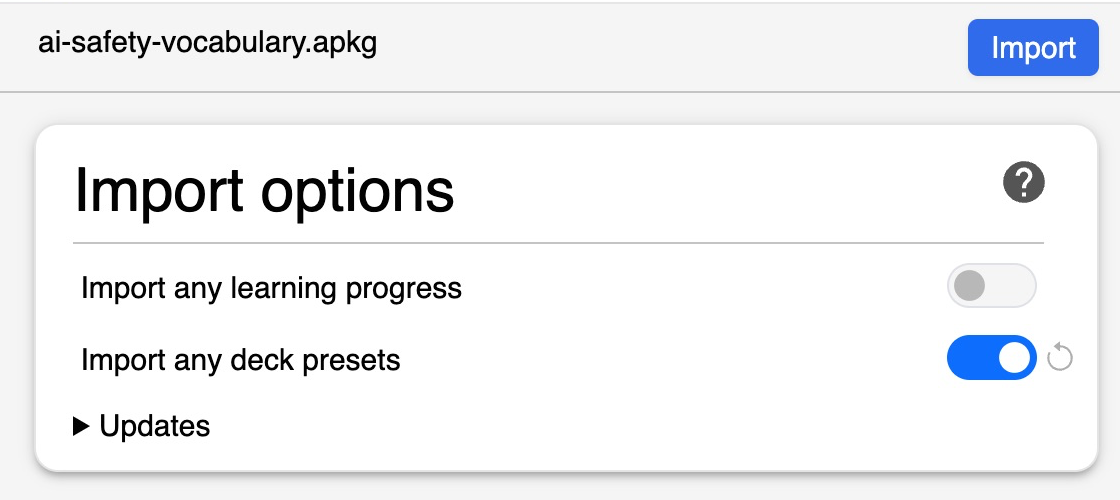
Need help? See Anki’s package guide.
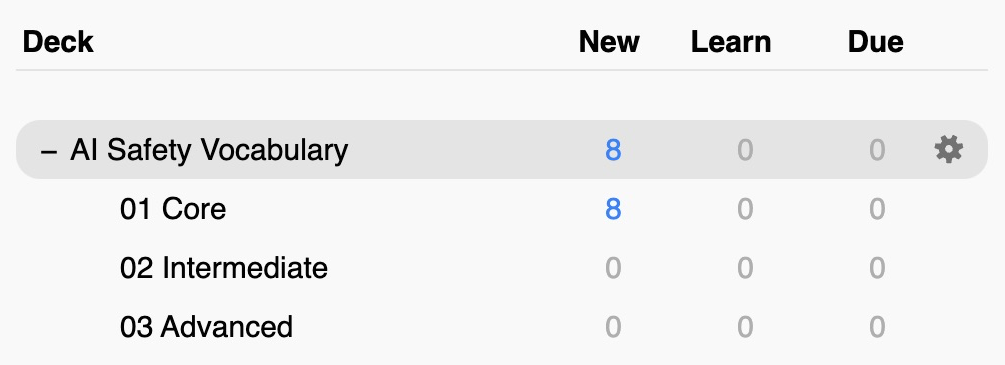
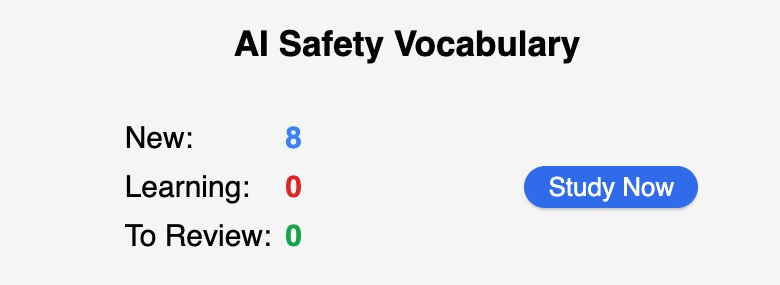
02Start with Core
03Open the next level

- Under Daily Limits, change New cards/day from 0 to 8 in Preset
- Choose Save
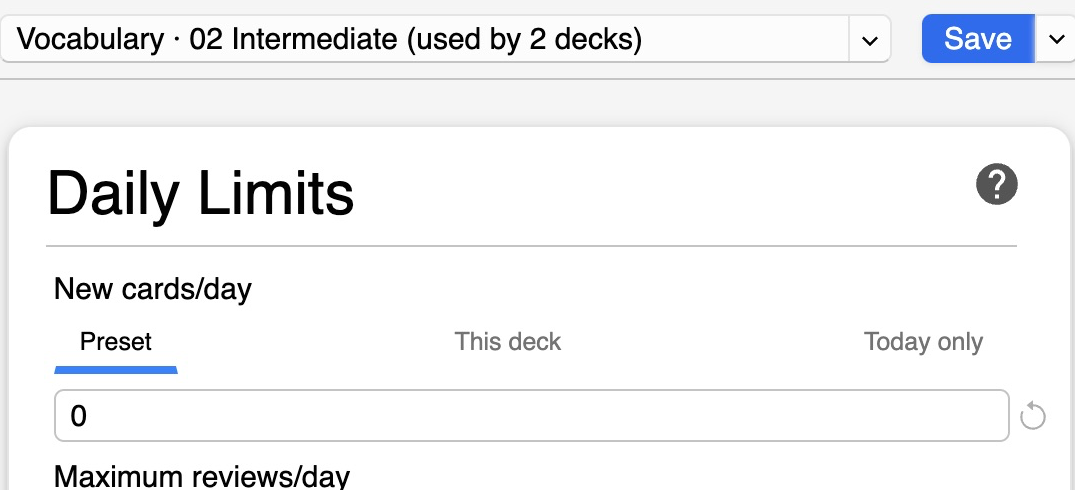
After saving, open 02 Intermediate and choose Study Now to start its new cards. Study AI Safety Vocabulary for reviews across the levels you’ve started. Later, unlock 03 Advanced by changing its New cards/day setting the same way.
A few terms at a time
Anki adjusts each card’s next review to how well you remembered it. Hard terms come back sooner; familiar ones wait longer. Regular practice makes these new terms easier to recall next time a term comes up.