Productivity · Automation
Turn a spoken thought into a to-do list item
A task pops into your head. You reach for your phone to write it down—and get distracted before you’ve saved it.
Double-tap the back of your iPhone and say it out loud. This shortcut saves your words straight to your Reminders Inbox, so you can get back to what you were doing.

YOU’LL NEED
- iPhone 8 or later
- Shortcuts app
- Reminders app
STEP BY STEP
THE WORKFLOW
4 STEPS01Create your To-Do Inbox
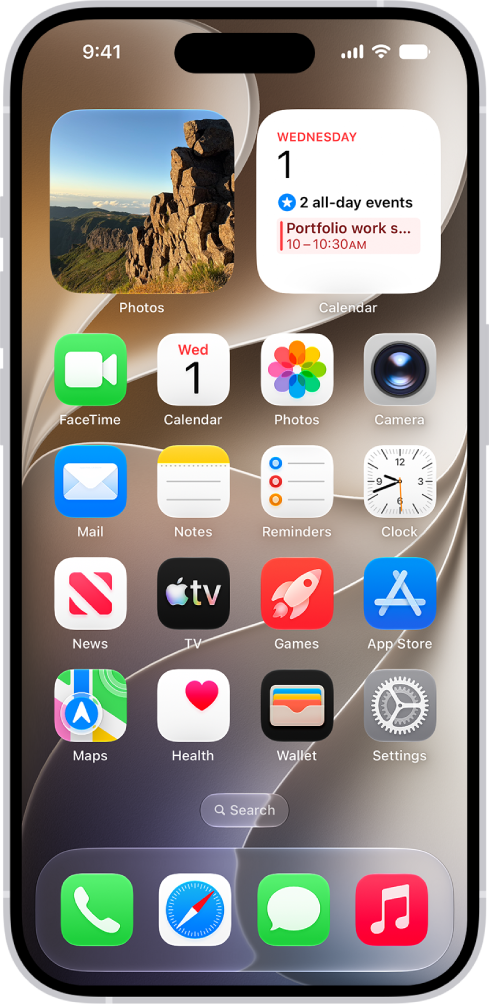
1.1Open Reminders
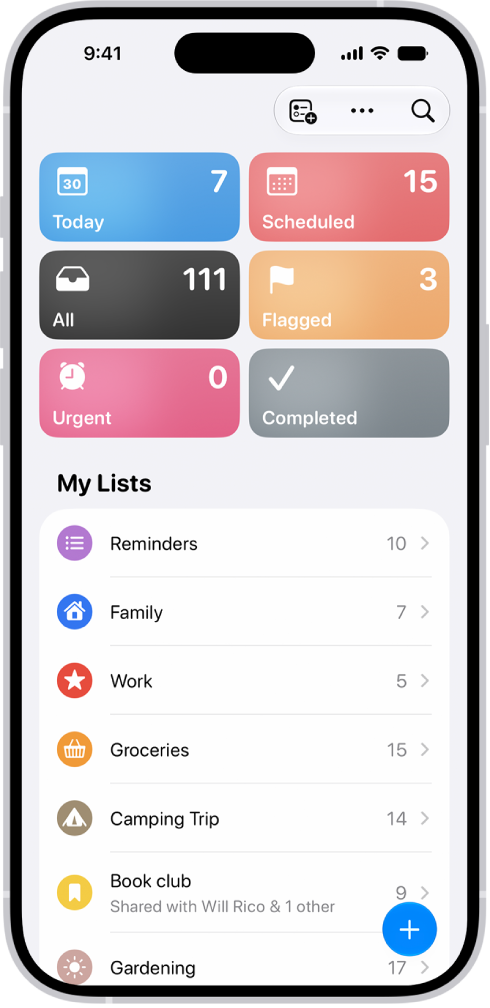
1.2Tap Add List
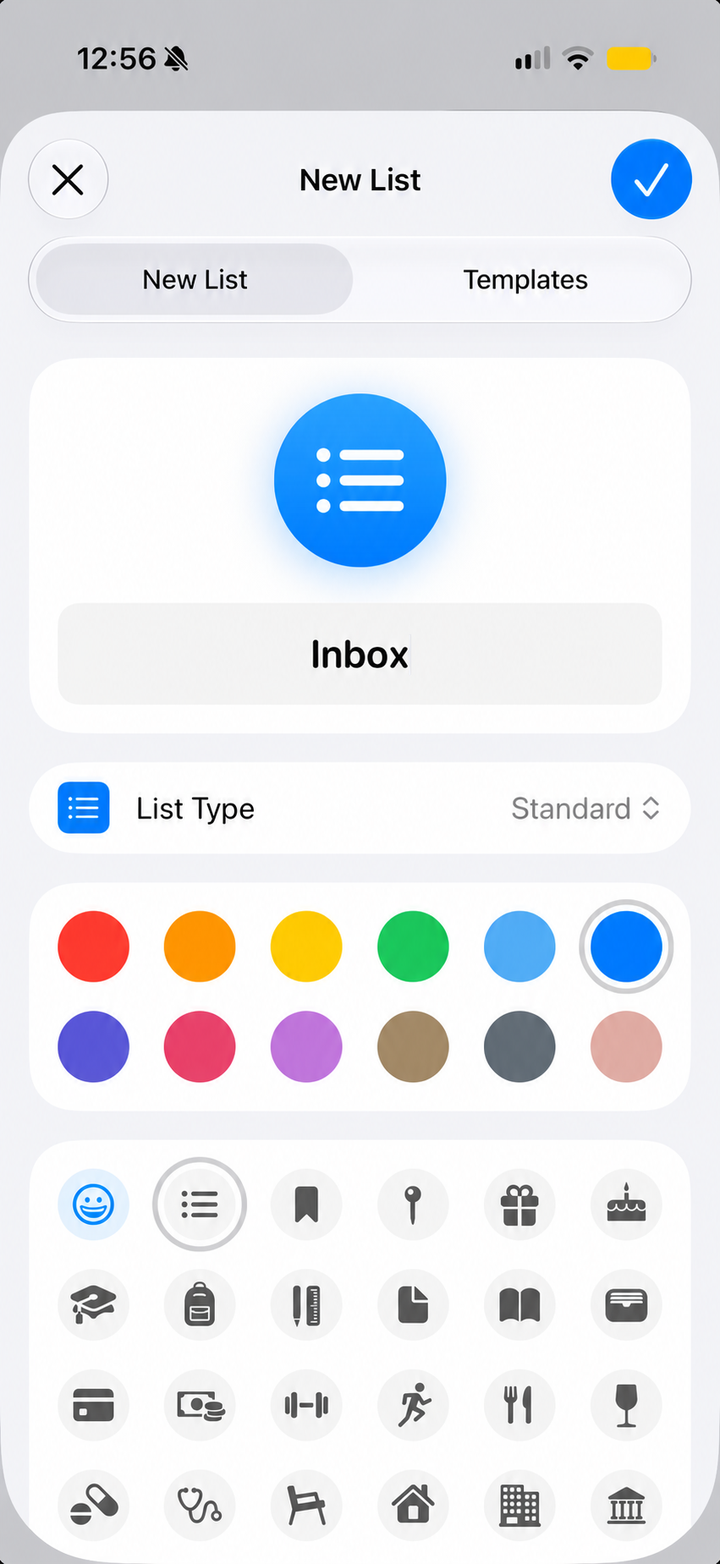
1.3Create Inbox
- Type Inbox as the list name
- Keep List Type set to Standard
- Tap the checkmark to save
02Build the Shortcut
Create a new Shortcut
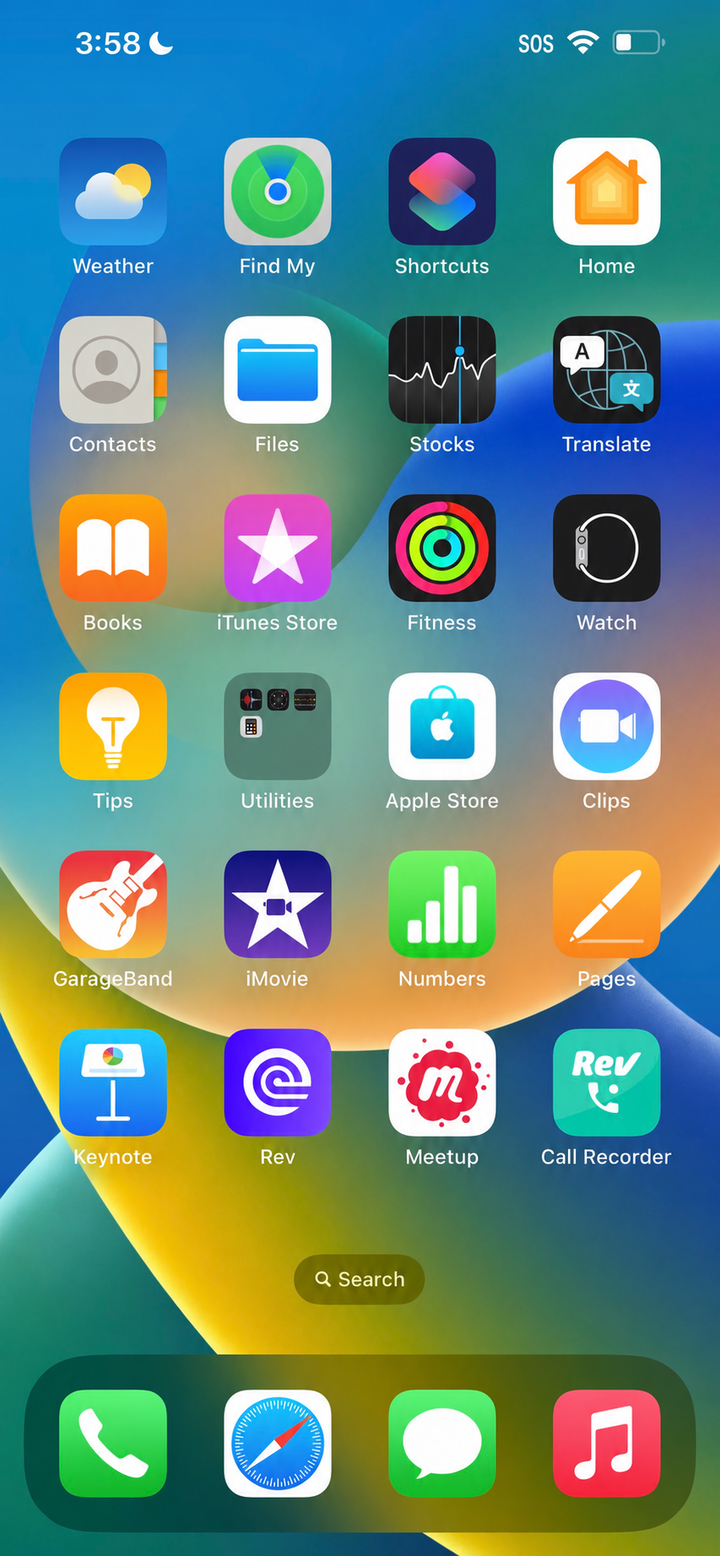
2.1Open Shortcuts
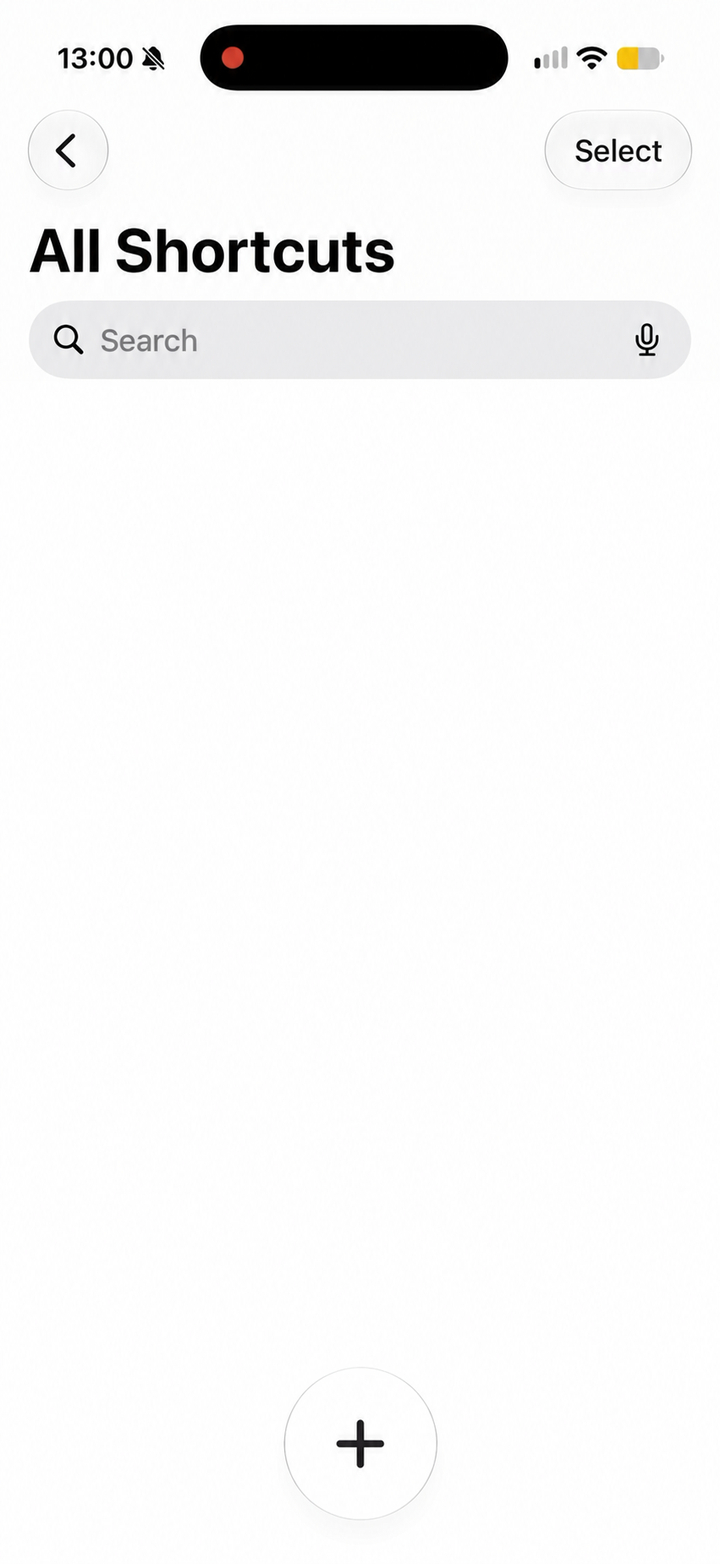
2.2Tap +
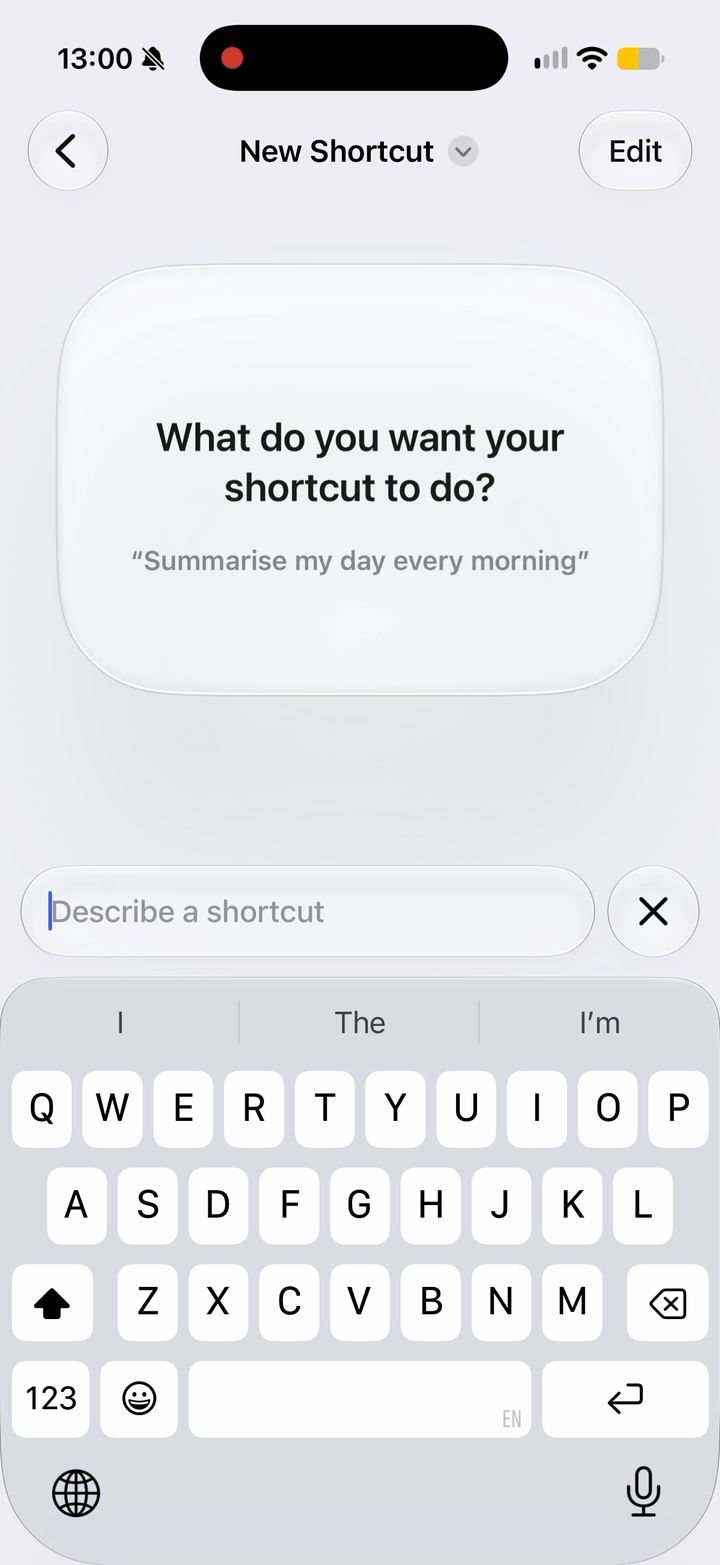
2.3Tap Edit
Add voice input
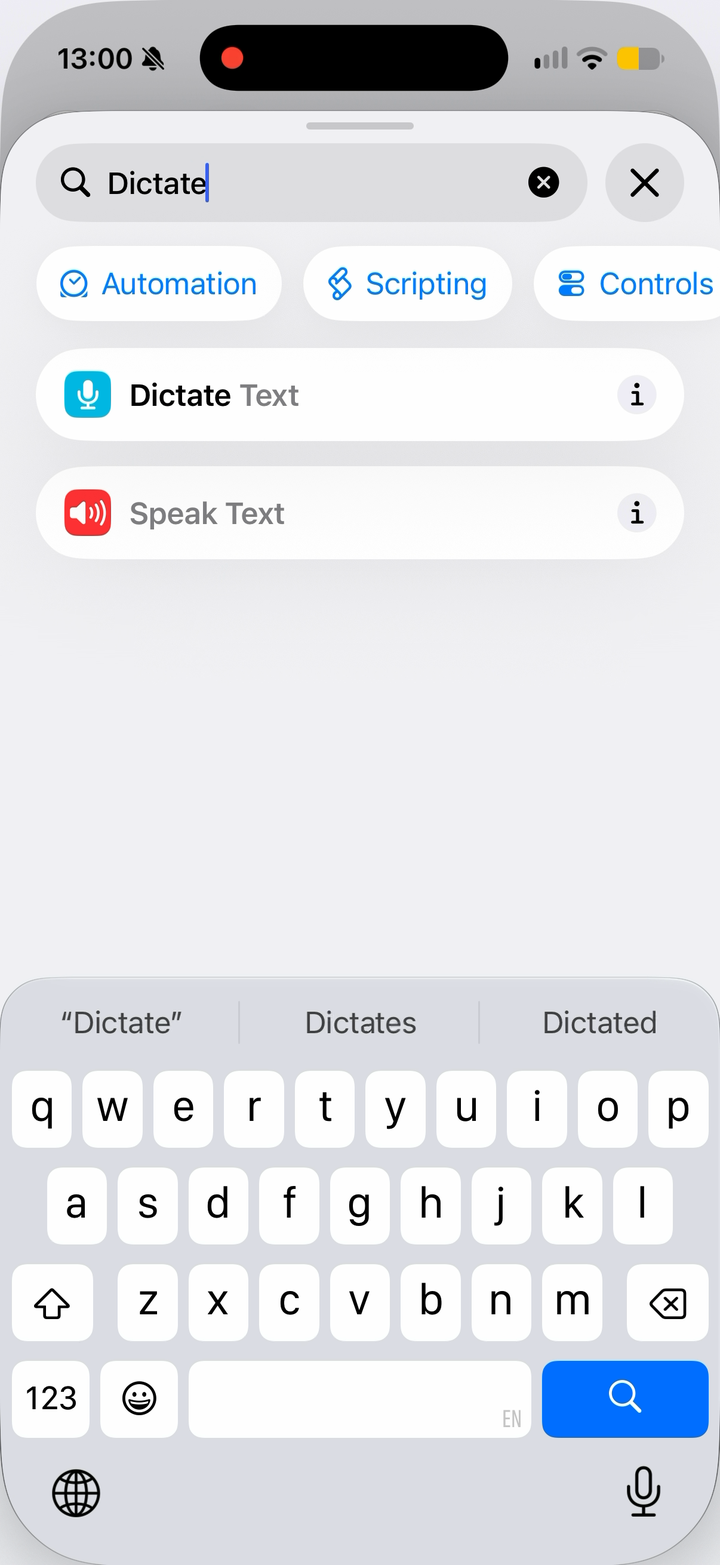
2.4Add Dictate Text
- Search for Dictate
- Tap Dictate Text
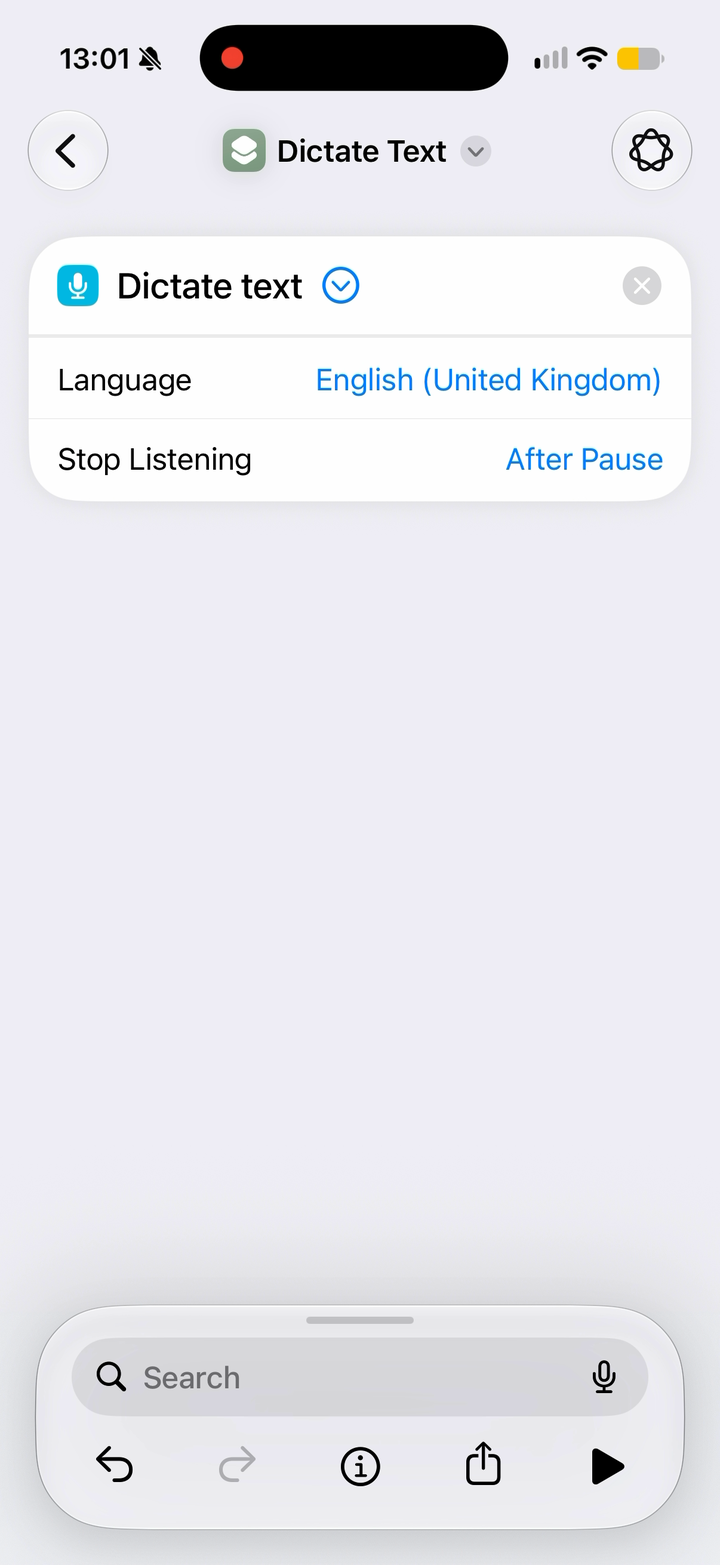
2.5Set up dictation
- Tap the arrow beside Dictate text
- Set Stop Listening to After Pause
Set up the reminder
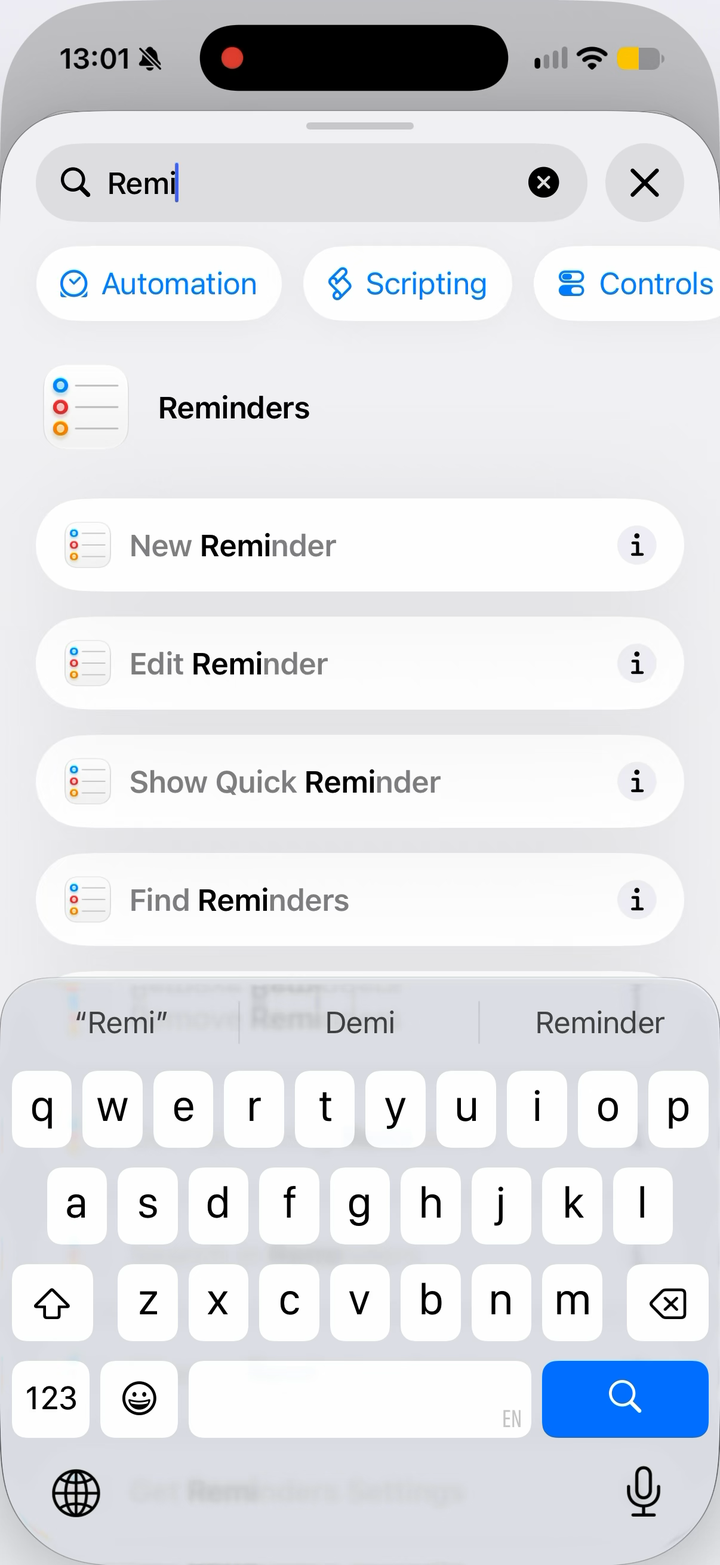
2.6Add a reminder
- Tap Search and search for Reminder
- Tap New Reminder
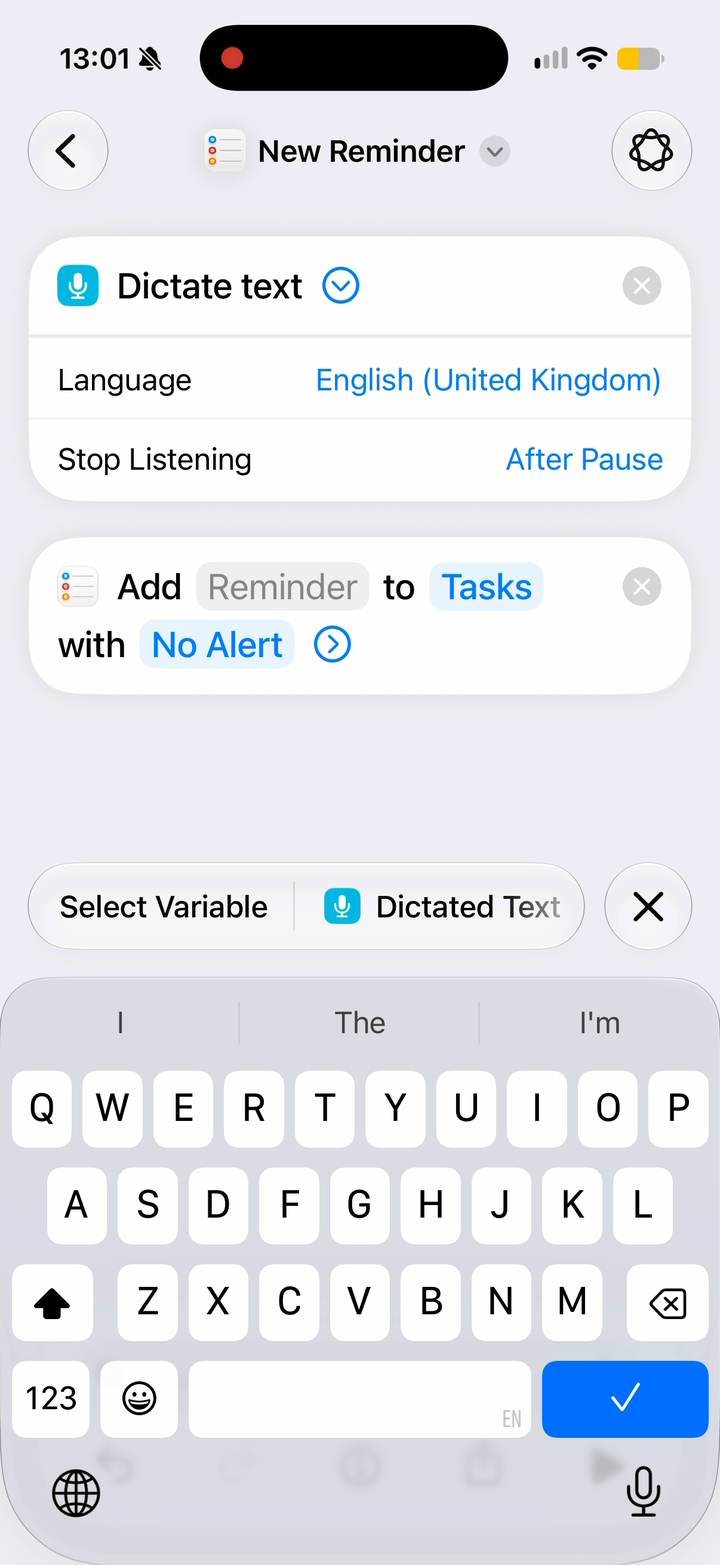
2.7Set the title
- Tap the Reminder title field
- Select Dictated Text above the keyboard; don’t type these words
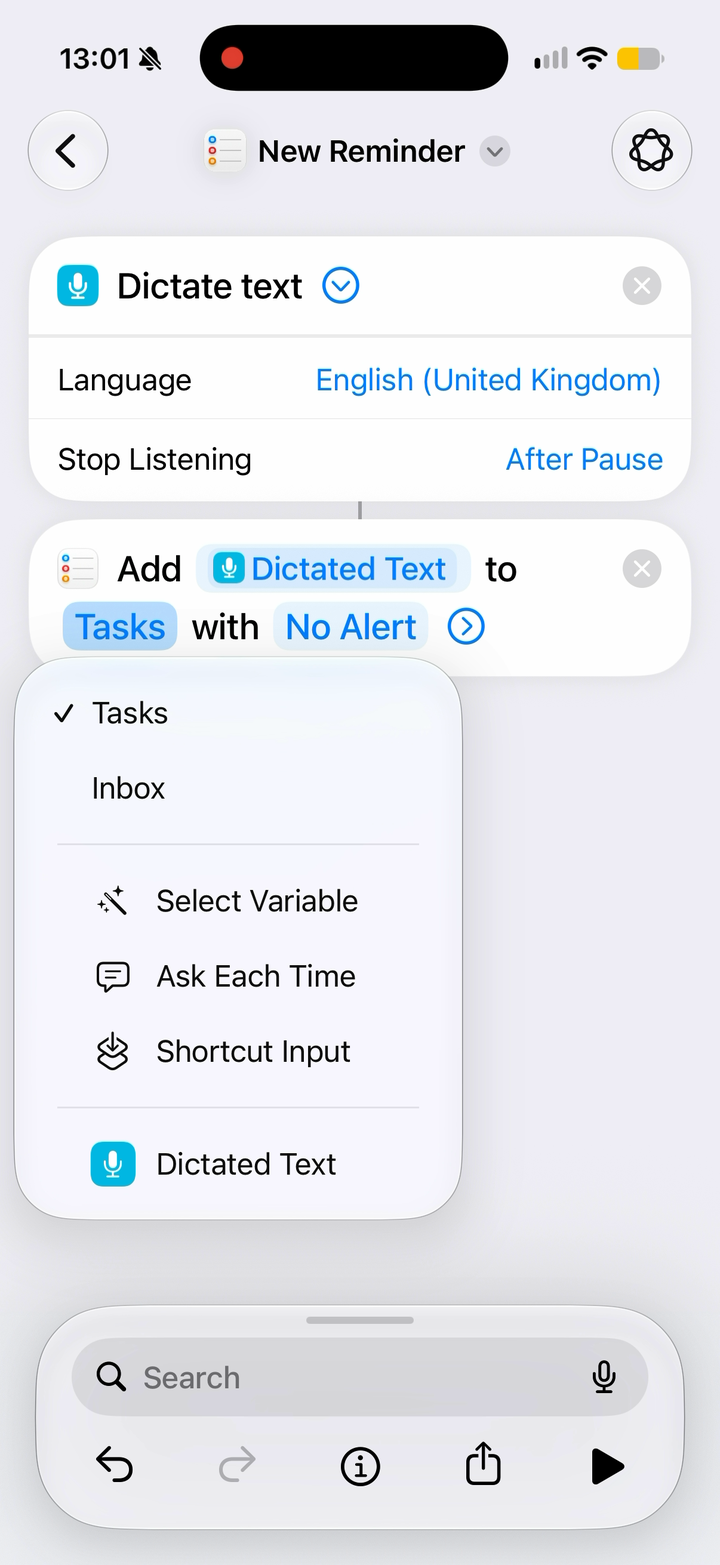
2.8Send to Inbox
- Tap the list name after “to”
- Choose Inbox
- Check the action reads “Add Dictated Text to Inbox with No Alert”
03Test the Shortcut
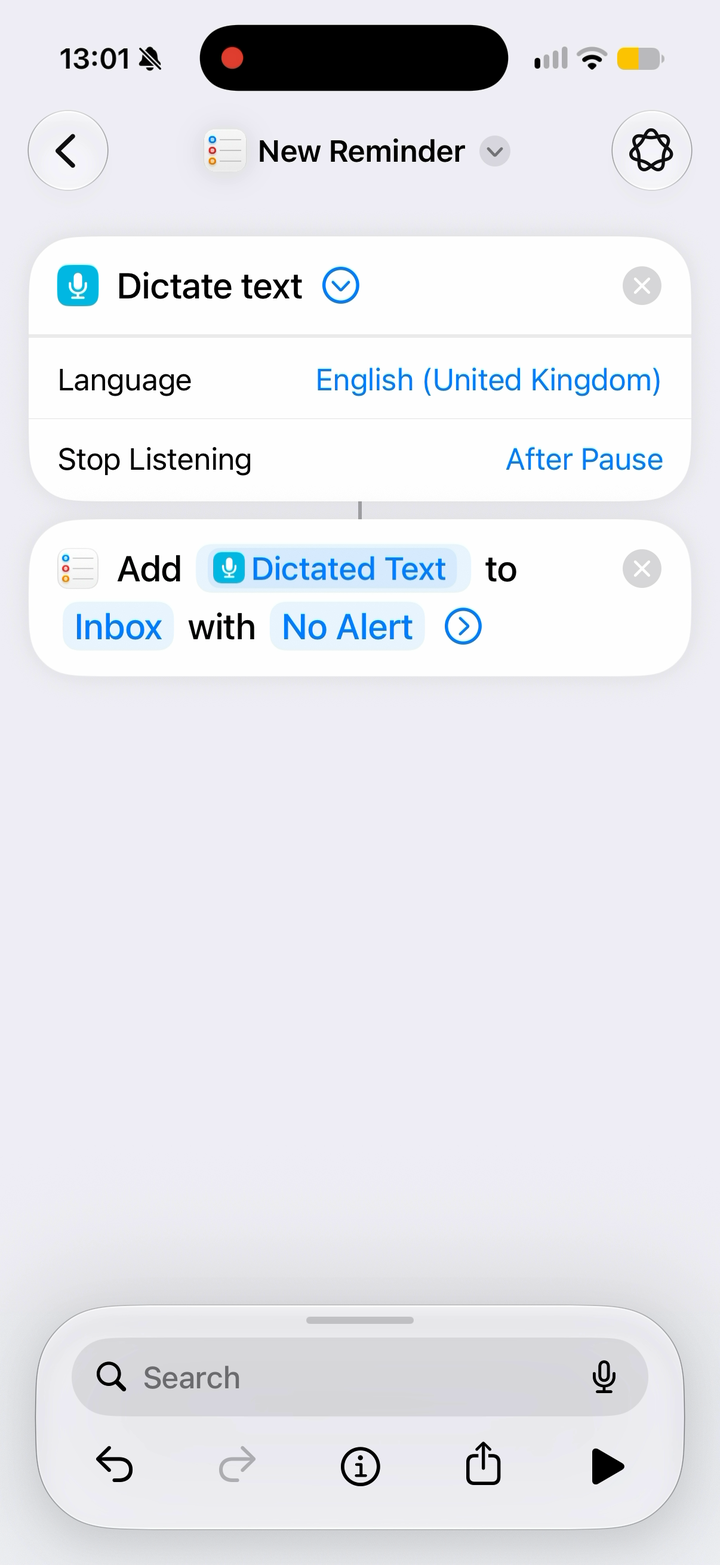
3.1Tap Play
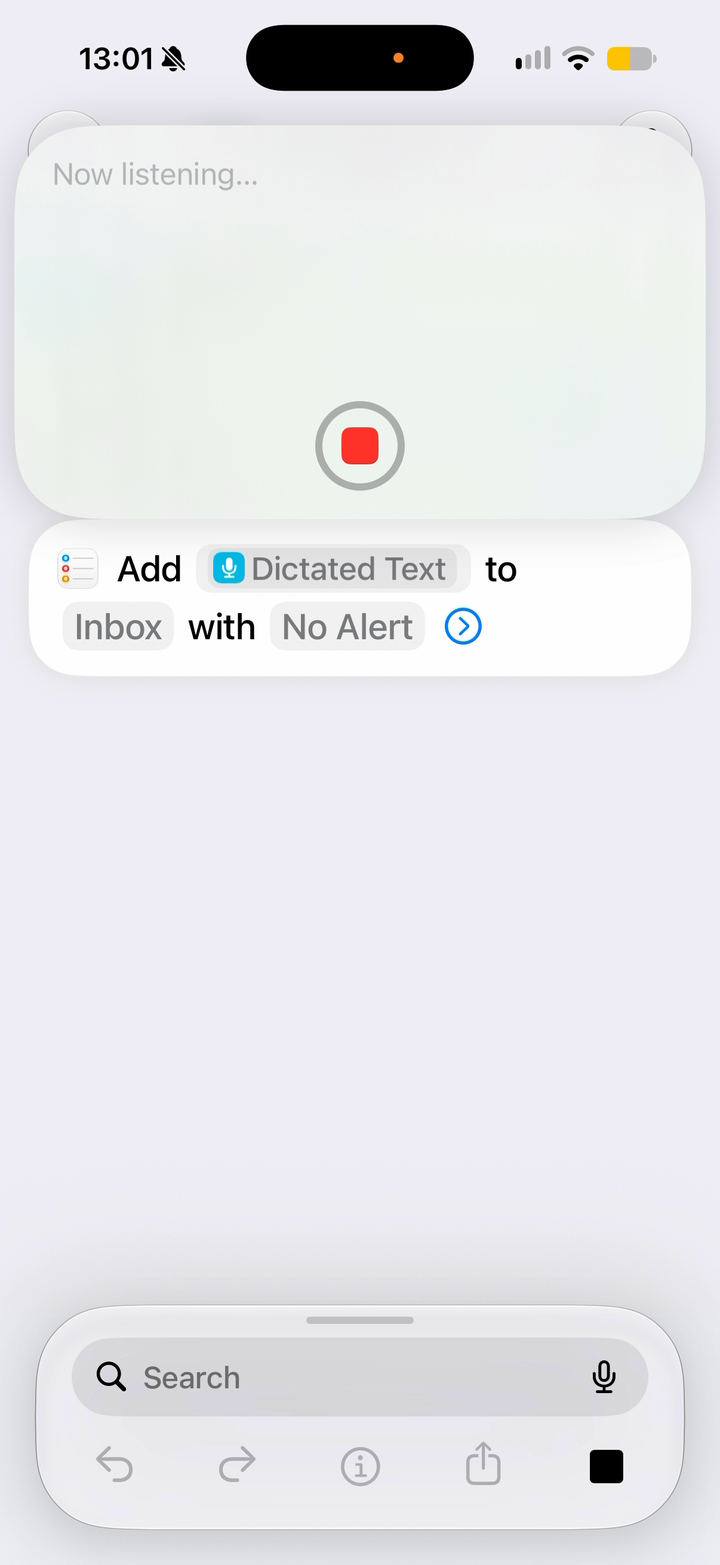
3.2Test speech-to-text
- Say something to check that the shortcut captures your speech as text
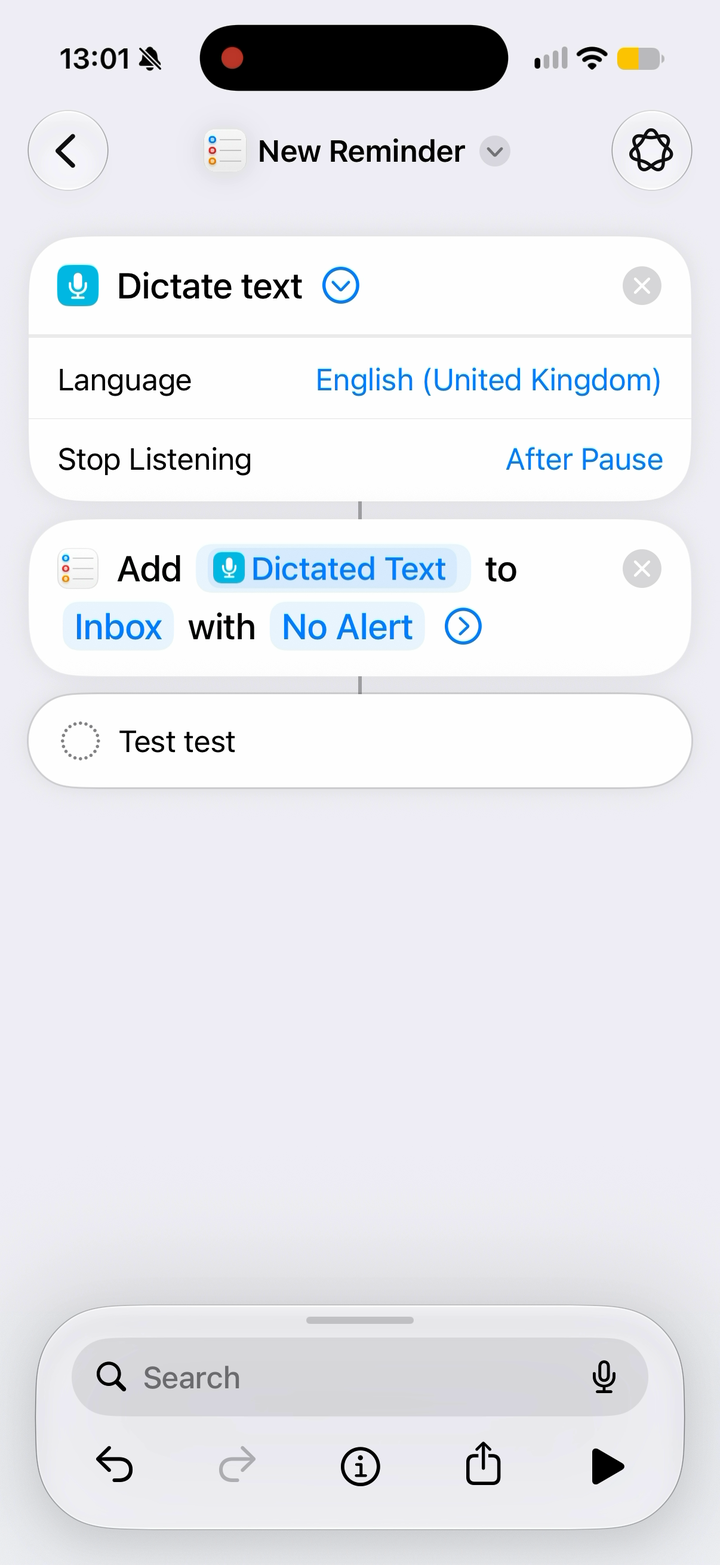
3.3Verify
- Confirm the test reminder shows
- Tap the back arrow
04Set the trigger
Turn on Double Tap
4.1Open Settings
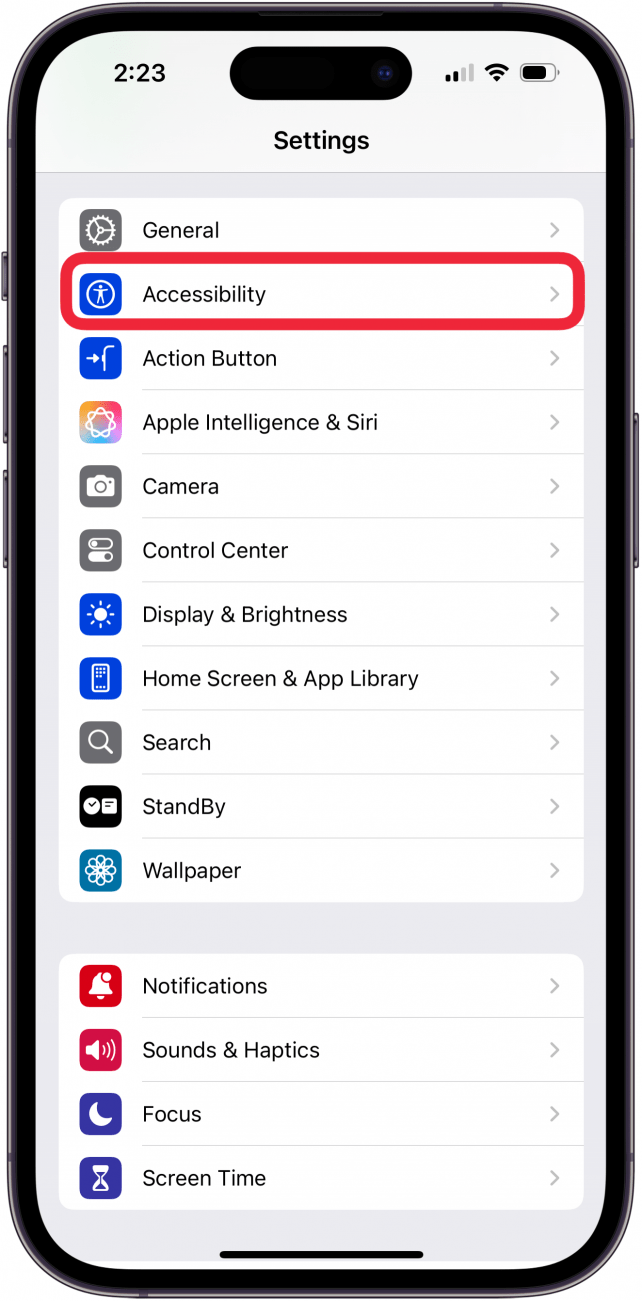
4.2Select Accessibility
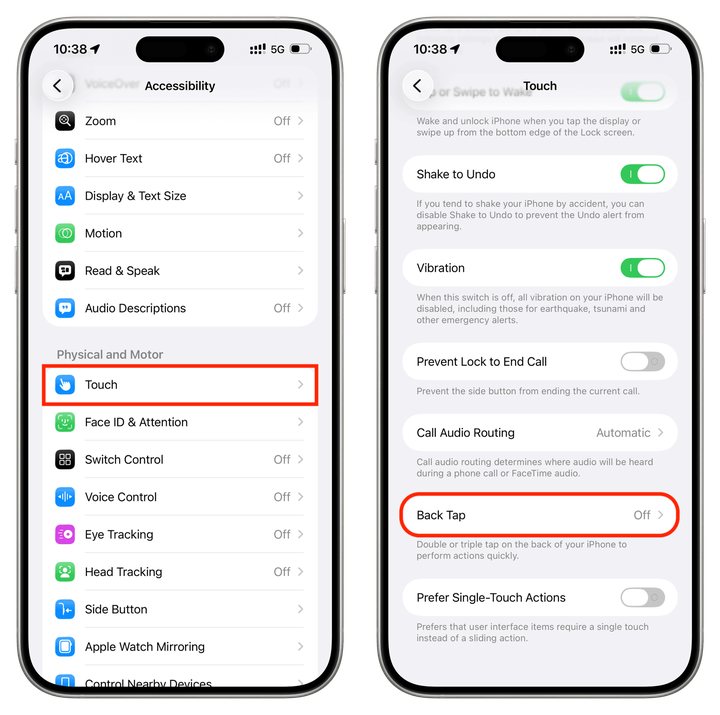
4.3Select Touch
4.4Find Back Tap
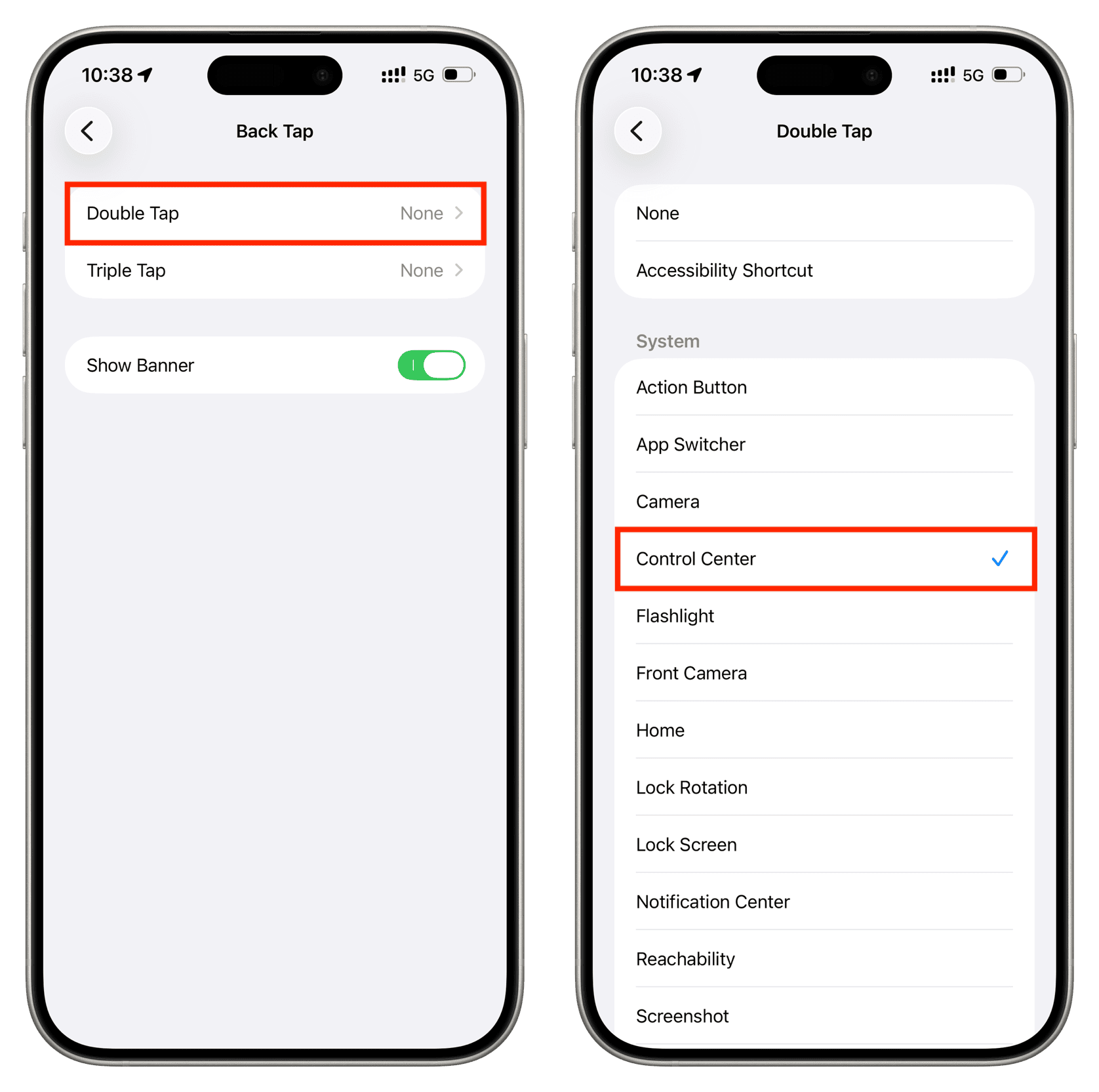
4.5Select Double Tap
Assign your new shortcut
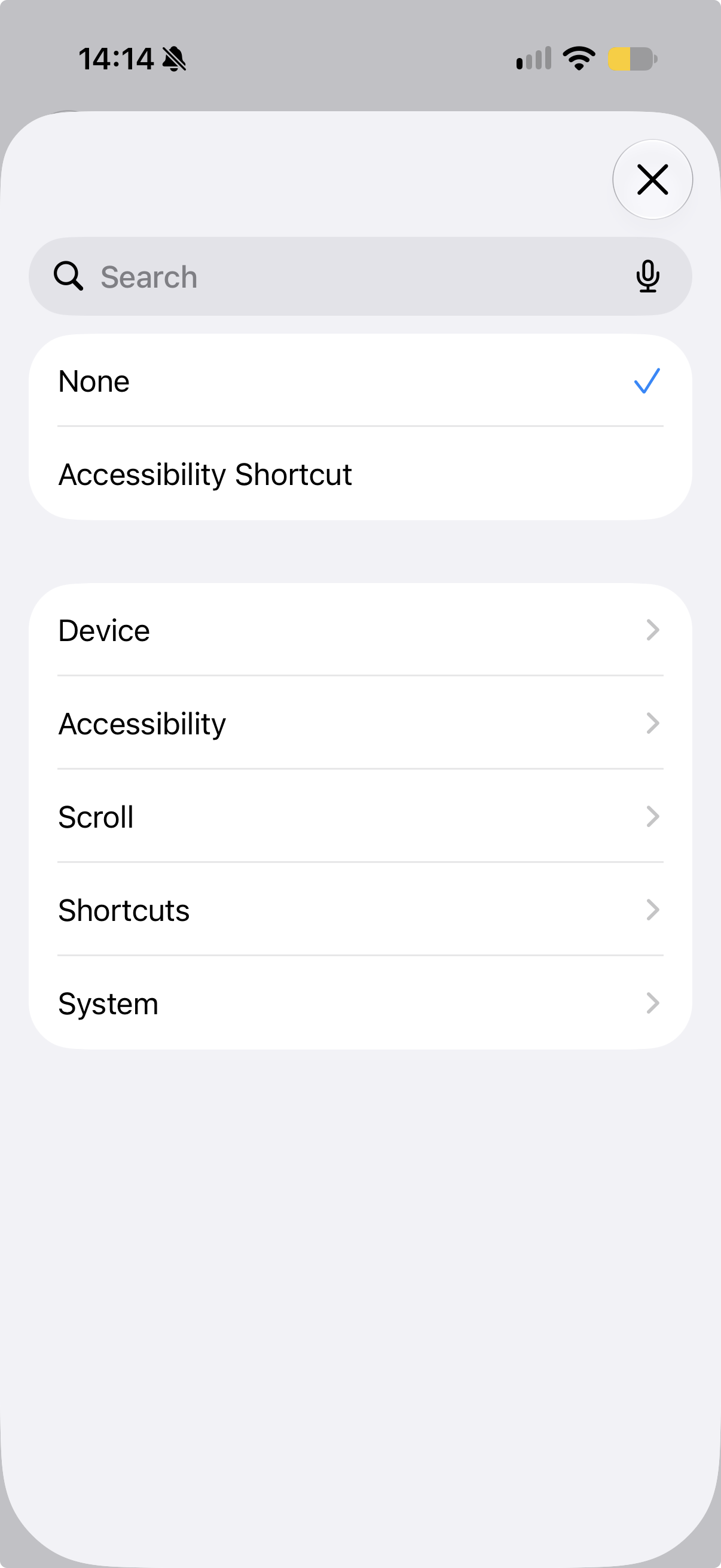
4.6Tap into Shortcuts
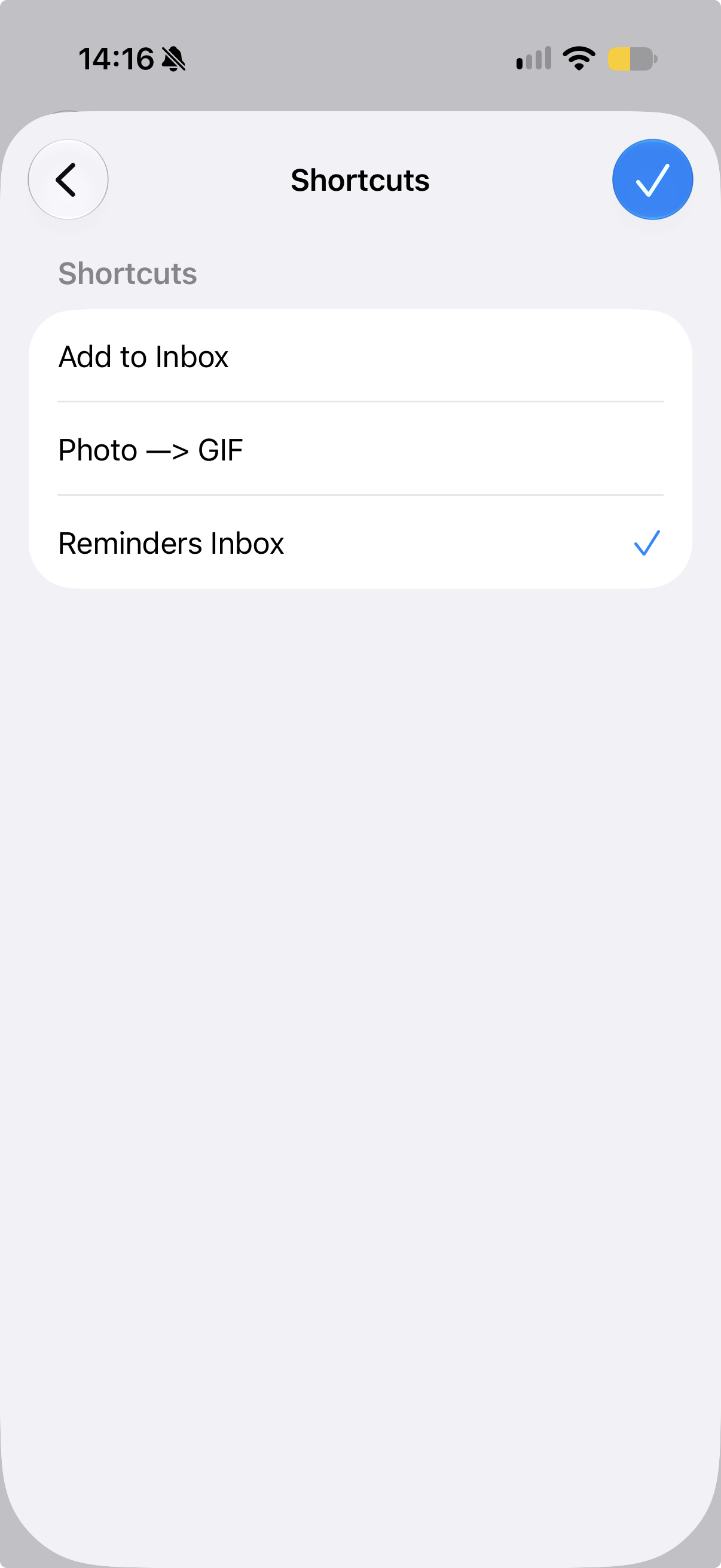
4.7Assign your shortcut
- Select the shortcut you just created
- Tap ✓ to confirm
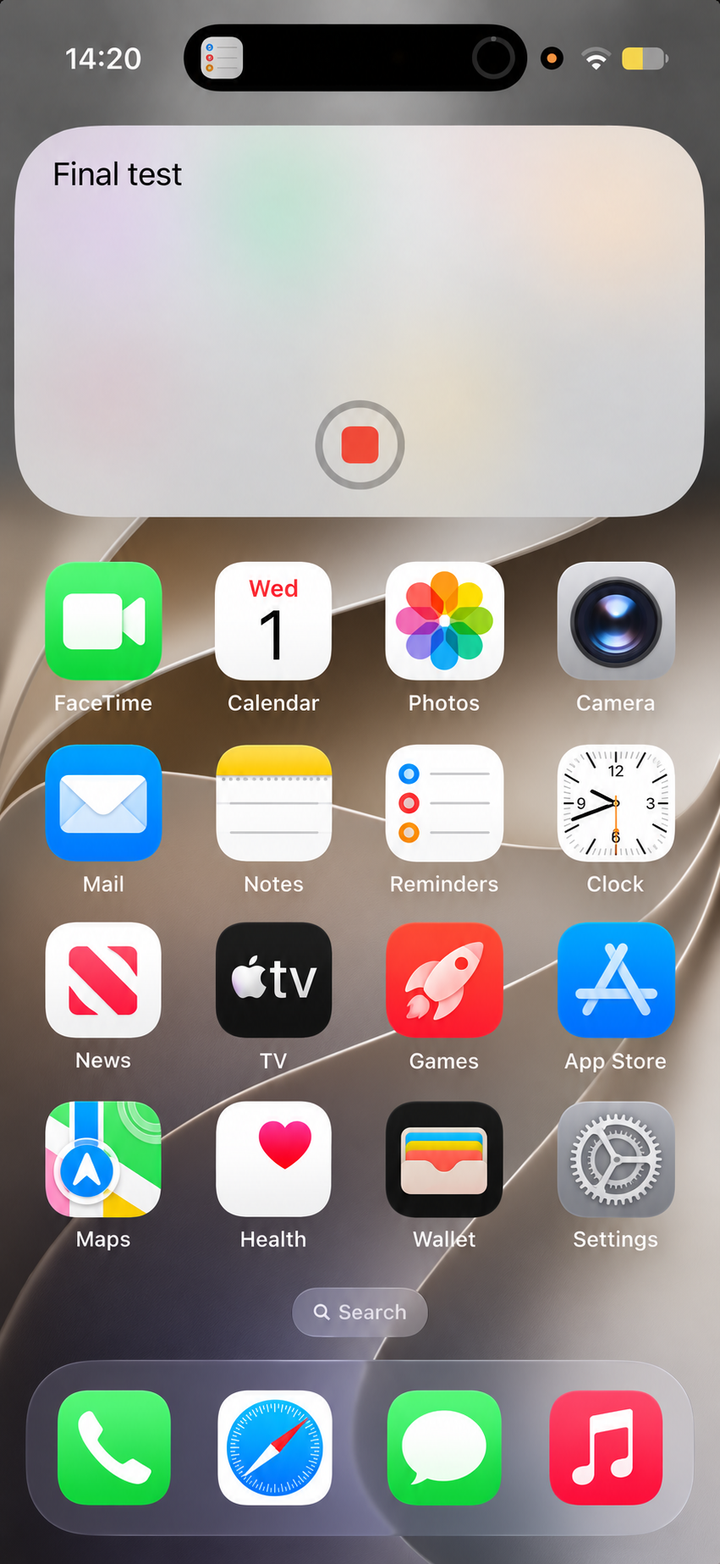
4.8Test Double Tap
- Double-tap the back of your iPhone
- Say something to test your setup end-to-end

4.9Check your reminder
- Open your Reminders app
- Open Inbox
- Check that your test reminder shows