Productivity · Organisation
Let AI keep up
with your to-dos
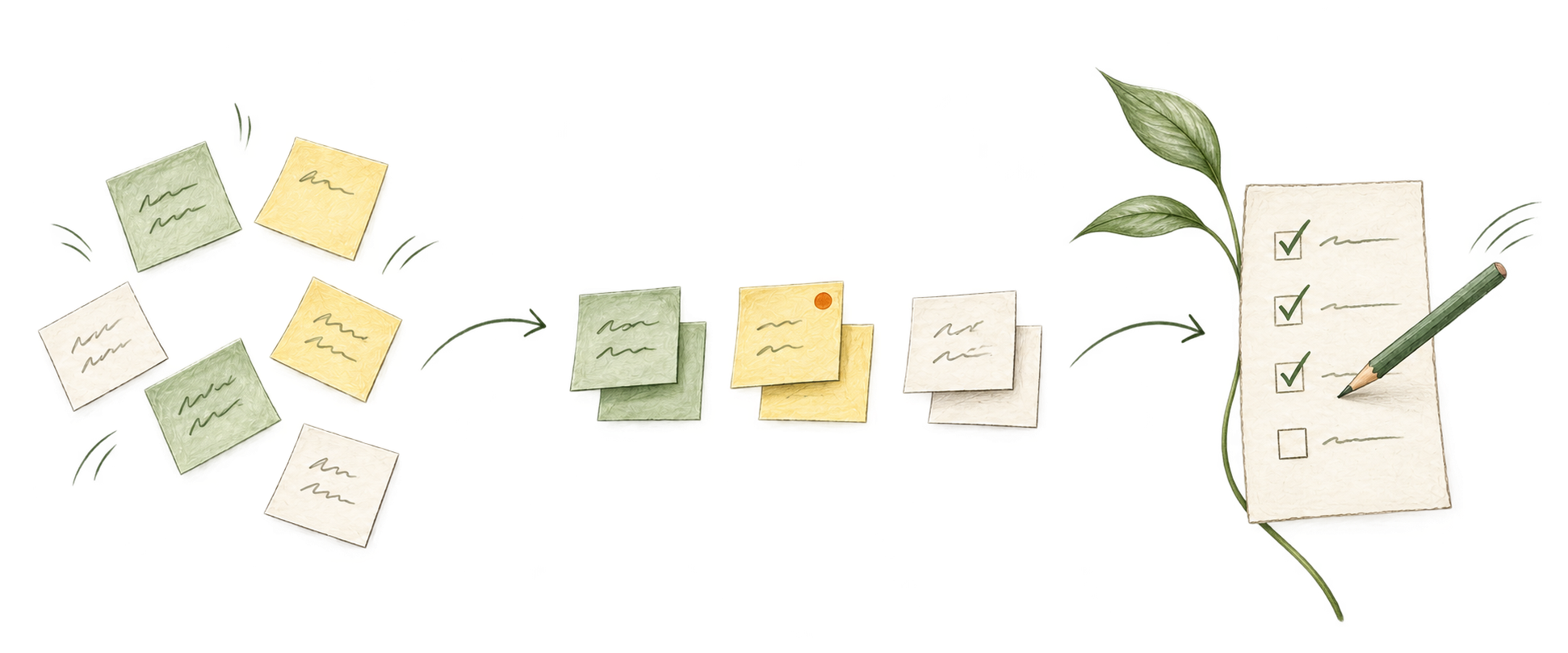
Tasks arrive faster than you can finish them. Mine seem to land at twice the rate I can tick them off. The list keeps changing—and working out where to start becomes another job.
Let AI help you work through the list: choose what matters, break down a stuck task, and prepare a reply draft or useful link. Less time sorting. Less to hold in your head. More help getting things done.
YOU’LL NEED
- Your to-do items in Apple Reminders
I add mine by voice. Here’s how to set that up.
- Your AI tool: Claude or Codex
- Your existing private GitHub workspace
STEP BY STEP
Get help working through your list
3 STEPS01Connect Apple Reminders
- Open your AI desktop app, go to Claude Code or Codex, and start a new session. Select the folder or project you use for your personal tasks.
- Paste this prompt:
Help me work through my Apple Reminders. Read the lists on this Mac and ask which to include.

Use my existing private GitHub workspace. Create context/reminders.md in this project and use it to keep one readable copy of my open tasks from the lists I choose. If that file already exists, preserve its content and ask before replacing it. Include notes, links, due dates and creation dates where available. Organise tasks by sensible categories based on the tasks themselves, then by urgency within each category. Keep the source list name with each task. Use stated deadlines and priorities; flag uncertain urgency rather than inventing it. Show the refresh time.

I will keep adding and completing tasks in Apple Reminders. Leave those tasks unchanged. Save only the relevant files to my private GitHub repo and check the saved copy. If access needs approval, show me exactly where. Keep keys out of chat and files. Show me the task count and any reading gaps.
- If macOS asks for access to Reminders, click Allow.
- If you have multiple lists in Reminders, tell your AI which ones you want help with.
- Compare two tasks in the AI’s copy with Apple Reminders. Check their names and due dates match. This checks the list was read correctly.
Your AI creates context/reminders.md for you. This is its copy of your tasks; your original list stays in Apple Reminders.
02Keep it up to date
- Paste this prompt to save the refresh rule:
Add this rule to my workspace instructions—AGENTS.md for Codex, or CLAUDE.md for Claude Code (and create this file if you haven’t already):

Before helping with my tasks, refresh the reminder file from the Apple Reminders lists we connected. Use a small reusable local refresh, not a manual export. Keep tasks organised by category and urgency; preserve source dates and list names. Save changes to my private GitHub repo using its existing sign-in. Keep unrelated edits out. Keep the last good copy on failure and say it is stale. Do not infer completion from disappearance. Ask before changing tasks in Reminders.

Preserve any existing instructions.
- In your To-Do list in Apple Reminders, create a new reminder called test.
- Return to your AI chat. Paste this prompt:
Refresh my reminders. Is “test” there? Show me the updated file and verify its private GitHub copy.
It worked if: the new reminder test appears in the saved copy and the refresh time has changed.
03Work through your list
- Open a new session in Claude Code or Codex, using the same folder or project.
- Paste this prompt:
Read my latest to-do list. Help me choose what to tackle next. Suggest up to three tasks and a useful first step for each—a draft, link or short checklist. Ask what you need to know before preparing it.
- Tell your AI how much time you have and what you’re already doing. For example: “I have 20 minutes and I’m replying to messages. Which task could I do now?”
From now on: your AI reads the latest list when you ask for task help.